
Buying Guides · Consumer Tech
How to Buy a Webcam for Calls From a Home Office
Compare webcam mounts, framing controls and privacy shutters after trying your existing camera in better light.
Published
THE CLEAR TAKEAWAY
Quick Answer
Improve the desk light and camera position first. Buy an external webcam when you still need a better mount, a more useful field of view or a more dependable video setup with a closed laptop.
Research Method / Evidence Basis
Public-source research. We reviewed the linked manufacturer documentation or official guidance and used it to explain practical buying decisions. We did not conduct hands-on product testing for this guide.
Editorial responsibility: One Clear Pick · How we research and recommend
This article contains ordinary source/manufacturer links, with no affiliate purchase links. How commissions work.
Start with one ordinary call
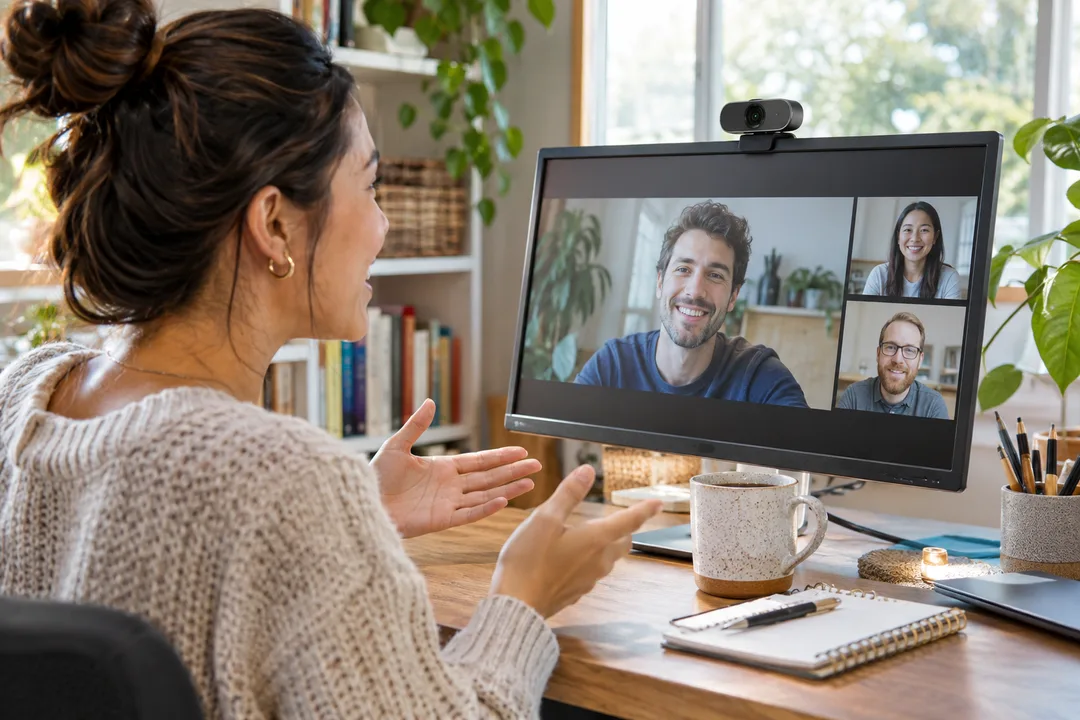
During a morning meeting your face is in shadow because the window is behind your desk. Switch the window to one side or move a soft light in front of you and preview the built-in camera. If the result is still poorly framed when the computer is on its stand or closed beside a monitor, an independently mounted camera can solve that placement problem. Measure the top edge of the monitor and see whether there is space for the clip.
Pick a field of view for the room
A wider view can include a second person or a whiteboard, along with more of the background. For one person close to a screen, a tighter view often serves the task. Check whether a listed field of view is horizontal, diagonal or software-adjusted before comparing. Learn whether controls require a separate app and whether you can install that software on a work computer. Logitech’s Brio 500 is an example of a webcam whose specifications describe the mount and available framing features.
Compare sound and privacy separately
If your current headset already handles audio well, use it and select it in the meeting app so the system does not substitute the new camera microphone. For a meeting in a shared room, setup location can matter as much as microphone features. A visible physical shutter can help you see the lens state at a glance. Verify the available USB port and where the cable needs to run before choosing a connection.
What is worth spending
Favor a mount that puts the lens where you want it and framing options you can access on your computer. Pay for additional image detail only when your conferencing setup can carry it and your work needs it. Try the same call preview after changing the light to see whether the purchase solves a problem you can still identify.
FAQ
Do I need a higher resolution for meetings?
Check what your conferencing tool and connection can carry. Improve light and camera position first, then compare extra detail in an ordinary call.
Will a monitor clip work on a thin display?
Check the clip opening, grip surfaces and any overhang. Some screens have a narrow border or an awkward back profile, so compare the mount illustration with the display before ordering.