
Comparisons · Consumer Tech
27-Inch 1080p vs 1440p Monitor for Work: Which Should You Buy?
Choose between sharper 1440p text and a 1080p USB-C hub at 27 inches. Compare ASUS PA278QV and Dell P2725HE, scaling, laptop power and desk setup.
Published
THE CLEAR TAKEAWAY
Quick Answer
For a new 27-inch work monitor, start with 1440p if reading, spreadsheets and side-by-side windows dominate your day. Choose 1080p only when larger unscaled interface elements, a lower verified total cost, or an essential hub feature outweigh finer detail. The ASUS PA278QV illustrates the 1440p route; the Dell P2725HE illustrates a 1080p USB-C hub, but Dell US marked it unavailable on our check. If you need sharp text and one-cable docking, investigate a 1440p USB-C monitor instead of accepting this trade-off.
Research-based, not hands-on tested. Specifications are manufacturer claims. Manufacturer links earn no commission. How we pick · Disclosure
Choose by workflow
Exact models checked November 18, 2026. Original specification cards, not product photographs. Manufacturer information links are non-affiliate; availability is not guaranteed.
Best for · Start here for a text-focused desktop or an existing dock
ASUS ProArt PA278QV
- 27-inch IPS · 2560 × 1440
- Up to 75Hz · no USB-C laptop charging
Why consider it: Higher pixel density at the same screen size; budget separately for any dock or adapter.
- No single-cable USB-C video and power
Non-affiliate link · No commission.
Best for · A hub-first example for a compatible USB-C laptop
Dell P2725HE
- 27-inch IPS · 1920 × 1080 · up to 100Hz
- USB-C upstream with up to 90W PD · Ethernet
Why consider it: Combines desk connections, but sacrifices pixel density. Dell US marked it unavailable on November 18, 2026.
- Coarser text at 27 inches
- No currently verified available offer
Non-affiliate link · No commission.
Research Method / Evidence Basis
Public-source research. Official manufacturer specifications and Microsoft display guidance checked November 18, 2026. We have not handled or tested these monitors. Pixel-density and workspace examples are calculations; recommendations are editorial judgments. Prices, exact retailer offers, affiliate eligibility and hands-on performance are unverified.
Editorial responsibility: One Clear Pick · How we research and recommend
This article contains ordinary source/manufacturer links, with no affiliate purchase links. How commissions work.

| Decision factor | ASUS PA278QV | Dell P2725HE |
|---|---|---|
| Native resolution | 2560 × 1440 | 1920 × 1080 |
| Pixel density, calculated at nominal 27 inches | About 109 ppi | About 82 ppi |
| Maximum refresh rate | 75Hz | 100Hz |
| Laptop USB-C power delivery | No | Up to 90W via upstream USB-C |
| Hub connection | Separate USB-B upstream | USB-C upstream; includes Ethernet |
| Stand | Height, tilt, swivel, pivot | Height, tilt, swivel, pivot |
| Availability checked November 18, 2026 | Retailer offer not verified | Dell US marked unavailable |
The decision is resolution first, connections second
A 27-inch screen can feel spacious while still making small text look coarse. The diagonal tells you how large the panel is; the resolution tells you how many pixels draw your documents. Buying the size alone misses the difference that matters during a day of email, browser tabs and spreadsheets.
Our starting recommendation is 1440p for a new 27-inch, text-focused work display. It gives you more detail without requiring a larger desk. That recommendation assumes your computer can drive the panel at its native resolution and that you can choose a comfortable text size. It is an editorial judgment based on geometry and your workflow, not a head-to-head viewing test.
The exception is a setup where a particular connection solves a bigger problem. A compatible USB-C hub monitor can simplify arriving at a desk with a laptop. But resolution and docking are independent features: you can also buy a 1440p hub monitor. These two examples illustrate a trade-off; they do not exhaust the market. For the wider checklist, read how to choose a monitor for work.
What changes at the same 27-inch size?
A 1920 × 1080 panel contains 2,073,600 pixels. A 2560 × 1440 panel contains 3,686,400. Divide the second number by the first and the result is approximately 1.78: 1440p has about 78% more pixels, with one-third more pixels in each direction. The physical screen area stays approximately the same for equal-size, 16:9 panels.
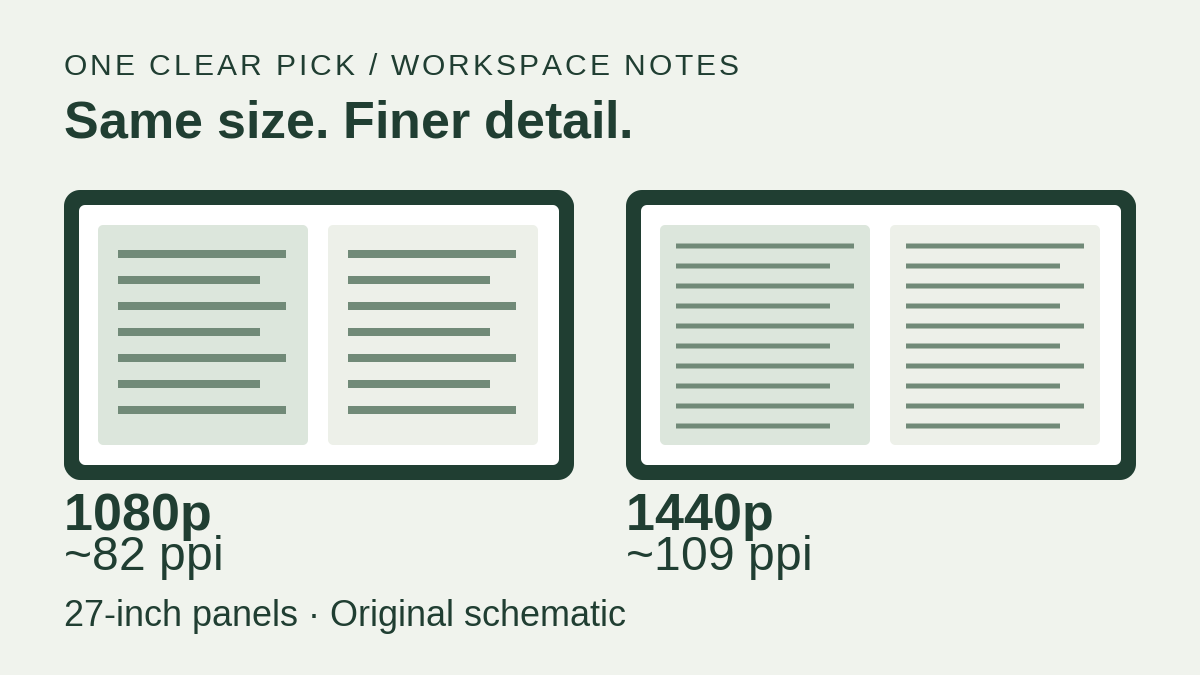
Using the nominal diagonal, pixel density is about 82 pixels per inch for 1080p and 109 for 1440p. We calculated those figures as the square root of horizontal pixels squared plus vertical pixels squared, divided by 27. They are geometry, not instrument measurements. Manufacturer density figures can differ slightly because of exact active-panel dimensions.
More pixels can draw finer character edges and give windows more room at equal scaling. That does not mean every application will fit 78% more useful information, and it certainly does not promise 78% more work completed. Toolbars, zoom, font choices and window arrangements matter. Think of the pixel count as additional layout capacity that you decide how to spend.
Text size, scaling and comfortable reading
At 100% scaling, the same interface element uses approximately the same number of pixels on both panels, so it appears physically smaller on the denser screen. If the first impression is tiny menus, increasing operating-system scaling is a more sensible first experiment than immediately lowering the monitor’s resolution.
As an illustration, 2560 × 1440 at 125% scaling corresponds to a layout of roughly 2048 × 1152 logical units. That leaves much less extra workspace than the raw 78% pixel comparison suggests. It still uses the panel’s native pixel grid; it is not the same operation as sending a lower-resolution image to the display. Individual apps can render and round dimensions differently.
Microsoft’s display guidance separates scaling from resolution and notes that lower-than-native resolutions can reduce text sharpness. Use the recommended native resolution, then try scaling, text-size settings or application zoom. Keep a representative document open while adjusting rather than judging only the desktop wallpaper.
Older applications and remote desktops deserve special attention. Test their menus, dialogs and text at your intended scale. On a mixed laptop-and-monitor desk, move a window between displays and check readability. We have not evaluated either monitor’s rendering with a specific Windows or Mac configuration; a return option is useful if that behavior is central to your work.
ASUS ProArt PA278QV
The exact PA278QV is our higher-resolution example. ASUS specifications identify a 27-inch IPS panel, 2560 × 1440 resolution, up to 75Hz refresh and a stand with height, tilt, swivel and pivot adjustment. Its video inputs include HDMI, DisplayPort and Mini DisplayPort; its USB hub uses a separate USB-B upstream connection.
For a desktop computer or an already docked laptop, that can be a straightforward arrangement. The screen does not need to become the center of your charging system. Connect video, connect the hub only if you need it, and keep the existing charger or dock. Our preference here is for the resolution and workflow fit, not a claim about measured panel uniformity or durability.
The main limitation is no USB-C laptop charging on this model. A USB-C-to-DisplayPort cable may solve video output for a compatible laptop, but it does not turn the display into a charging dock. Confirm the laptop’s output support and budget for the complete connection plan. Do not assume another ProArt monitor’s USB-C features apply to the PA278QV.
Choose this route if reading detail matters and your connections are already handled. Skip this exact model if a single cable carrying video, data and laptop power is a requirement. Current US retailer stock, pricing and kit contents have not been verified, so our link is an information destination rather than a confirmed buying offer.
Dell P2725HE
The exact P2725HE, US part 210-BMFQ, illustrates the hub-first route. Dell’s US page specifies a 27-inch IPS panel at 1920 × 1080, up to 100Hz, an upstream USB-C connection with DisplayPort Alternate Mode and up to 90W power delivery, plus Ethernet. Its stand adjusts for height, tilt, swivel and pivot.
For a compatible laptop, the attraction is a simpler arrival-and-departure routine: video, desk USB devices and charging can share the upstream connection. This can matter more than extra workspace when you frequently unplug your laptop. The inference is about connection convenience; we did not test reconnect behavior, network reliability or power delivery.
There are two important exclusions. First, it is still a 1080p panel at 27 inches. A hub and a higher refresh rate do not add text detail. Second, Dell US marked this model unavailable on November 18, 2026. Treat it as a specification comparison and an option for existing owners or independently verified offers, not a currently available direct purchase recommendation.
Do not choose it merely because a laptop has a USB-C-shaped socket. Verify display-output support, USB data, charging compatibility and the cable. A laptop that needs more than 90W may still require its own adapter. The downstream USB-C port is not interchangeable with the upstream laptop connection. If you need docking and sharper text, broaden the search to a 1440p USB-C hub model.
Which route fits your workday?
Writing, coding and document review: start with 1440p. The denser grid is the stronger foundation for small text and split windows. Choose a comfortable scale before deciding whether you need a second monitor. We have no task-completion measurements; this recommendation follows the display geometry rather than a promised productivity increase.
Spreadsheets beside a browser: compare the actual window arrangement you use. At equal scaling, the 2560-pixel width gives each of two equal windows more horizontal room than 1920 pixels. A higher zoom level can consume that advantage. Test column widths, frozen panes and the website’s minimum layout instead of assuming every extra pixel becomes another useful column.
One large application with larger text: 1080p may be sufficient. If your workflow is mostly a single dashboard, a remote terminal or large presentation content, you may not need more layout capacity. That is a reason to evaluate your needs, not evidence that the two resolutions have equal detail. An existing satisfactory monitor does not need replacing for its specification alone.
A laptop moved between desks: map the connection routine before buying. If the missing item is a dock, compare a hub monitor with a higher-resolution monitor plus the dock you actually need. If you already own a suitable dock, paying for another hub may add little. If both detail and docking matter, avoid treating the two monitors here as your only choices.
Motion and occasional games: Dell’s 100Hz specification is higher than the ASUS model’s 75Hz. That can make supported motion and scrolling look smoother, but neither number establishes real pixel response, overshoot or gaming performance. For a mixed-use desk, investigate a current higher-refresh 1440p display rather than accepting coarse text solely to obtain 100Hz.
Compare total setup cost, not just screen price
We are not quoting a live price or declaring either model cheaper. Compare the final price for an exact available offer, then add the pieces your desk lacks: a suitable video adapter, dock, charger or monitor arm where needed. Reusing equipment you already own can change the result more than a small difference in display price.
A hub can be poor value if its power output does not suit your laptop. A higher-resolution screen can also be a poor purchase if your current adapter cannot drive it correctly. Check the full connection chain, including the computer output, dock specification and cable, at the intended resolution and refresh rate. A connector name alone is not enough.
Availability is part of that calculation. Do not pay an unexplained scarcity premium for an older exact model just to match an example in an article. Compare an available replacement’s own specifications and return policy. Similar model names and a shared series label do not guarantee the same panel, power delivery or ports.
Buying and setup checklist
Before ordering, work through these checks:
- Write down your normal task. Use a representative document or spreadsheet, not an imagined future workload.
- Decide your text size. Try a 27-inch screen at the intended viewing position when possible; compare native resolution with comfortable scaling.
- Check the exact model. Match the listing, selected variant and manufacturer specifications; do not borrow features from a neighboring model.
- Verify the computer connection. Confirm native resolution, refresh rate and any USB-C display and charging requirements.
- Price the whole setup. Include required cables, adapters and docking equipment; check what the selected regional kit contains.
- Check returns and availability. A dated manufacturer listing is not a live-stock guarantee or a promise about a third-party seller.
After connection, select the external display in system settings, confirm native resolution, choose a supported refresh rate, and adjust scale or zoom. Check your actual apps, reconnect the laptop, and test peripherals before discarding packaging. If you use an arm, verify the exact mount pattern and supported weight rather than assuming any 27-inch display fits.
When to look beyond both examples
Choose another class of monitor if neither trade-off works. If you need sharp text and charging from one connection, investigate 1440p USB-C models. If you want finer rendering again, compare a 27-inch 4K display and its scaling behavior; our Dell S2725QC research review explains a separate model and its limits. It is not interchangeable with the P2725HE.
If the desk is shallow or a large screen makes comfortable placement difficult, reconsider size before resolution. If your existing display already serves your actual workload, keeping it may be the best-value choice. More pixels are useful only when the complete setup supports the way you read and work.
Disclosure and research limits
This article uses ordinary, non-affiliate manufacturer and source links. There are no affiliate purchase links in this comparison, and no monitor commission offer or ASIN has been verified. See our affiliate disclosure for how commissions work elsewhere on the site. Commercial approval does not determine the resolution recommendation.
We checked the linked official sources on November 18, 2026. Manufacturer specifications are attributed above; pixel-density and scaling examples are calculations. The original diagram is schematic, not a photograph of either model or a controlled sharpness comparison. We did not measure text rendering, brightness, color accuracy, motion response, charging, reliability or comfort. Those limits should guide how much weight you give this research-based recommendation.
FAQ
Is 1080p too low for a 27-inch office monitor?
It can be usable for larger text and simple work, but its roughly 82 ppi is coarser than 1440p at the same size. For a new monitor used mainly for reading and spreadsheets, we would start with 1440p and adjust scaling if needed.
How much more workspace does 1440p provide?
At the same scaling, 2560 × 1440 has about 78% more pixels than 1920 × 1080. This is not a 78% productivity claim. Scaling, zoom and application layout determine the usable workspace.
Will 1440p text be too small?
At 100% scaling, interface elements are smaller than on a same-size 1080p display. Keep native resolution and try operating-system scaling or app zoom. Comfort and older-app behavior need a personal check.
Does the ASUS PA278QV charge a USB-C laptop?
No. This exact model does not provide USB-C laptop charging. Use an appropriate video connection and a separate charger or compatible dock. Other ProArt models have different ports.
Does any USB-C laptop work with the Dell P2725HE?
No. Confirm that the laptop port supports the required display output and that USB-C charging, power demand and the cable are compatible. The monitor offers up to 90W, which is not sufficient for every laptop under every load.
Should I buy 1080p for 100Hz instead of 1440p at 75Hz?
For static documents, we would prioritize text detail. A higher refresh rate can improve motion and scrolling, but it cannot add resolution. If both matter, compare current 1440p monitors with higher refresh rates and the ports you need.
Sources and References
- ASUS ProArt PA278QV official technical specifications
Exact model, panel, resolution, refresh rate, ports and stand; checked November 18, 2026.
- Dell US P2725HE official product page
Exact model and US part 210-BMFQ, specifications and unavailable status; checked November 18, 2026. Stock can change.
- Microsoft: change resolution and layout in Windows
Native resolution and scaling guidance; checked November 18, 2026.