Buying Guides · Workspace Tech
How to Choose a Monitor for Work: What Actually Matters
Choose a work monitor by readable text and connections. Our Dell S2725QC pick and U2725QE hub alternative, with official specifications and links.
Published
THE CLEAR TAKEAWAY
Quick Answer
Prioritize readable text and a useful layout, then verify desk fit and the complete computer-to-monitor connection. Pay for specialist features when they solve a frequent task.
Research Method / Evidence Basis
Public-source research. Official standards and manufacturer documentation checked October 12, 2026. Recommendations are editorial judgments about documented fit, not hands-on testing or measured comparisons.
The Short Answer
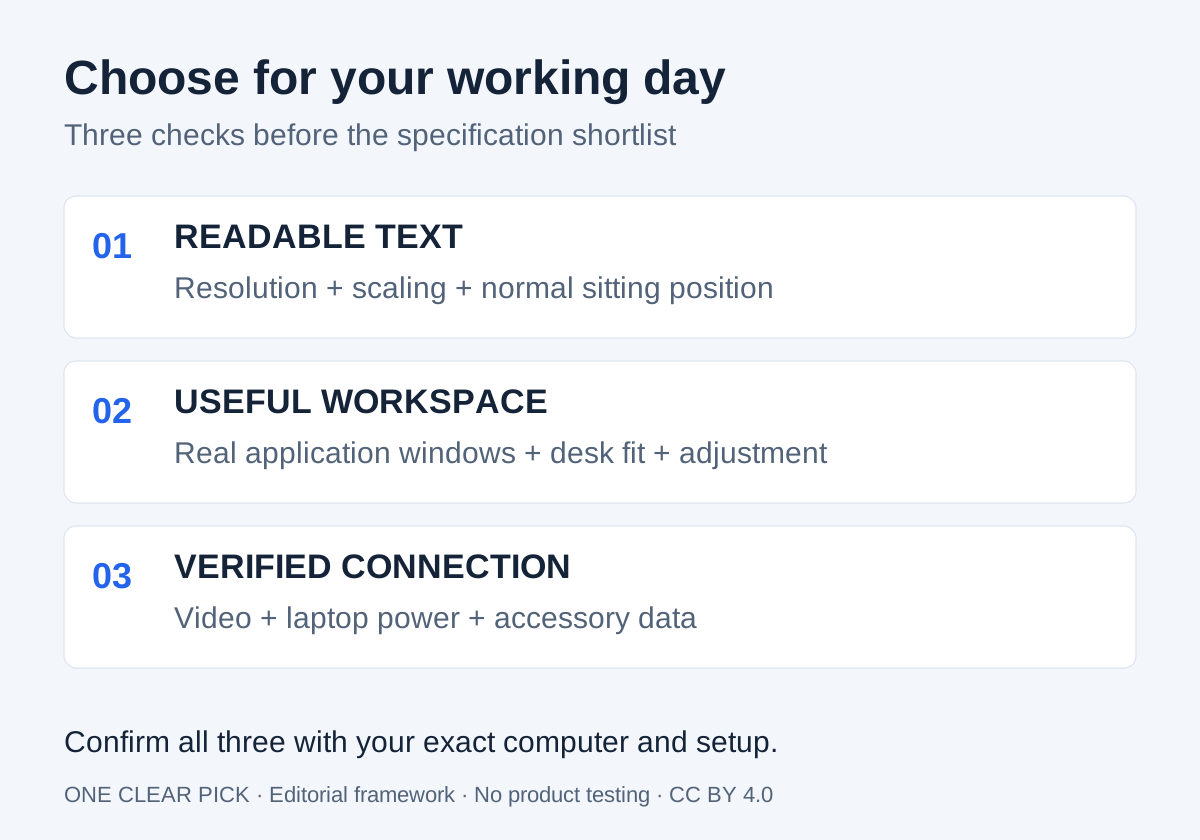
Choose a work monitor around three things: readable text at your normal sitting position, enough usable space for your real applications, and a connection that your computer can actually drive. Then check stand adjustment, reflections, and the practical details of plugging in each day. Those requirements matter more than an impressive specification that does not solve a problem in your workflow.
For a first shortlist, consider a conventional screen that comfortably fits your desk before committing to an ultrawide or two displays. If you want a single-cable laptop setup, make video, charging, and accessory connections separate requirements. If you do color-critical work, add documented color performance to the shortlist rather than assuming that any office monitor meets that need.
This guide combines a buying framework with a concise research-based shortlist. We have not tested monitors, measured panels, or verified a manufacturer’s performance claims. There are no affiliate links or quoted product prices. The right purchase is the one whose documented capabilities match your computer, room, and work, with personal preferences checked during a permitted trial.
One Clear Pick
One primary choice, one alternative. Researched October 12, 2026; not hands-on tested. No price or stock promises: check your region on the manufacturer’s page.
Our Pick · everyday desk work
Dell S2725QC
Best For: Office users wanting a 27-inch 4K display and simple USB-C setup.
Skip If: Your laptop needs more than 65W charging or you need a Thunderbolt hub.
Why We Picked It: Dell lists 3840 × 2160, up to 120Hz and USB-C video with up to 65W power delivery. We prioritize this practical core for document and browser work.
Why Not Others: The U2725QE adds connections many ordinary desks do not need. We claim no measured panel-quality winner or universal price advantage.
View at Dell →Official manufacturer link · not an affiliate link
Alternative · hub-heavy desk
Dell U2725QE
Best For: Compatible laptops needing a Thunderbolt hub and wired networking.
Skip If: You already have a suitable dock and only need a display.
Why We Picked It: Dell documents a 27-inch 4K panel, Thunderbolt 4, up to 140W EPR delivery and 2.5GbE. Verify the laptop and cable support these capabilities.
Why Not Others: Extra connections justify this shortlist option when you use them. They do not establish better text clarity for your eyes.
View at Dell →Official manufacturer link · not an affiliate link
Start With the Work You Actually Do
Describe your most demanding ordinary task. Perhaps you compare two documents, keep a reference open beside a code editor, or work through a spreadsheet while a meeting window stays visible. Sketch those windows on paper. Decide which must be readable together and which can remain behind another window. This is a more useful starting point than buying the largest panel you can afford.
Also name the problem with your current setup. Small text, insufficient window space, a screen that sits too low, and a tangle of daily connections are different problems. A higher resolution might help one while leaving another unchanged. Set two or three non-negotiables and use them to reject unsuitable options before considering extras.
Write down the exact computer model, operating system, available ports, and any dock you already use. If a work computer is managed, check permitted accessories and software. Keep that information beside your shortlist. A monitor is part of a system, and a limitation elsewhere in that system can prevent you from using the feature that attracted you.
Size, Resolution, and Scaling: Three Different Questions
Screen size describes the physical display; resolution describes its pixel grid. Pixel density connects those ideas. EIZO’s explanation shows why higher density and operating-system scaling must be considered together: more pixels do not automatically provide more usable workspace once you enlarge interface elements. Its examples explain the mechanism, rather than proving that a particular EIZO model is the best purchase. EIZO on pixel density and scaling.
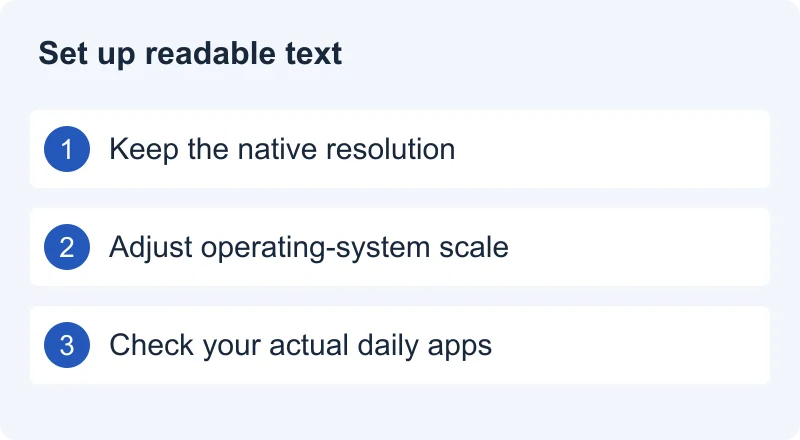
Our buying advice is to ask two separate questions: how clear is the text, and how much can you comfortably fit on screen? Do not evaluate a high-resolution monitor only by looking at a full-screen photograph. Open a document, your browser, and the application you use most. Set text to a size you can comfortably read, then assess the remaining workspace.
Microsoft recommends using the resolution marked Recommended in Windows and provides a separate Scale setting for enlarging text and other items. Its guidance warns that lower-than-native resolutions can make text less sharp or change how the image fills the screen. This describes Windows settings, not every application’s behavior. Microsoft’s resolution and layout guidance.
If you cannot try a candidate, seek a demonstration that identifies screen size, resolution, scaling, and application. A photograph with unknown settings leaves the most important variables unresolved. Do not assume a reviewer who likes very small interface elements has the same preferences as you.
Desk Fit and Adjustment Come Before a Larger Screen
Measure the usable desk width and depth, including the keyboard, laptop, and anything that must stay within reach. Look up the monitor’s dimensions with its stand, not just the panel diagonal. Check whether the stand footprint leaves room for your normal keyboard position and whether the screen can sit where you want it without pushing everything else forward.
List the adjustments you need: height, tilt, swivel, or portrait rotation. Verify each in the exact model’s documentation. A photograph of a stand does not establish its adjustment range. If you plan to use an arm, confirm the mounting pattern, monitor weight, arm capacity, and desk attachment requirements before counting the original stand as irrelevant.
For a personal fit check, arrange the screen where you would normally work and open your everyday material. Notice whether you keep leaning forward, turning repeatedly to an outer edge, or moving the keyboard to accommodate the stand. These are prompts for your own evaluation, not medical advice or results from our testing. A screen that fits naturally into your workspace is more useful than one that requires constant rearrangement.
Connections: Verify the Entire Route
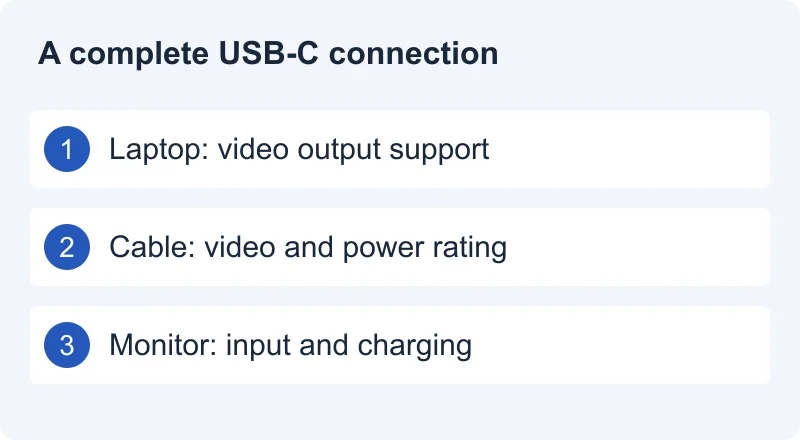
USB-C names a connector; it does not by itself settle video support, charging output, or available accessory connections. VESA’s DisplayPort FAQ explains DisplayPort over USB-C and the need for supported capabilities in the devices involved. Treat that as a reason to check the computer, monitor, and cable together. VESA DisplayPort FAQ.
For each candidate, write a complete route: computer port, cable or adapter, dock if used, and monitor input. Find documentation for your intended resolution and refresh rate along that route. Avoid transferring a capability from another laptop in the same brand family or another port on the same computer. If the documented combination is unclear, ask the manufacturer before purchase.
Charging deserves its own check. USB-IF describes USB Power Delivery as a standard with evolving power capabilities; that does not establish the wattage of a particular monitor. Compare the monitor’s documented power supplied to the laptop with the computer manufacturer’s requirements for your workload. USB-IF Power Delivery background.
Finally, distinguish a USB hub from a video input. If you want a keyboard, mouse, webcam, or wired network to follow the laptop connection, verify the necessary upstream link and supported functions. Make a simple port inventory. A one-cable setup is worthwhile when it removes steps you actually repeat, rather than merely sounding convenient on a product page.
Refresh Rate: Useful, but Keep the Priority Clear
Refresh rate describes how often a display updates its image. Microsoft’s Windows instructions explain how to select available rates and warn that some choices change resolution. The selectable combination matters more than two maximum numbers printed separately on a shopping page. Microsoft’s refresh-rate guidance.
For writing and document work, our suggested priority is readability and fit first, then motion preferences. If you value smoother scrolling or also play games, include refresh rate in the shortlist. Compare it with your actual computer and connection. Do not pay for an advertised mode that your normal dock cannot deliver or that requires sacrificing another essential setting.
During an allowed trial, confirm the operating system is using the intended resolution and refresh rate. Try scrolling your usual documents rather than judging only a demo clip. If you cannot perceive a meaningful benefit in your work, redirect the budget toward a better stand, useful connections, or another requirement. We do not assign a universal productivity gain to a refresh-rate upgrade.
Reflections, Brightness, and Everyday Controls
Look at your room before shopping. Where are the windows and lamps? Does your current screen reflect a bright object behind you? Can the desk or lighting move? A monitor change should be considered alongside placement, because a purchase cannot guarantee that every room will suit every screen surface.
Check the exact finish and brightness controls in the manual, then seek evidence relevant to your lighting. A manufacturer’s maximum-brightness figure does not answer how the screen looks at a comfortable setting in a dim room. Nor does a photograph establish how distracting reflections will be at your desk. Treat these as uncertainties to investigate, not as conclusions borrowed from a label.
Try ordinary white documents and darker applications at different times of day if a permitted trial allows it. Check that brightness and input selection are straightforward. If settings require software, verify that the software is available for your system and permitted on your work computer. Good everyday controls matter when you need to change an input quickly rather than navigate a complicated menu during a meeting.
Color Features and HDR: Buy for a Defined Task
An office shortlist and a color-critical shortlist need different evidence. If you edit images for delivery to clients, identify the target workflow and ask what independent measurements or calibration documentation are available for the exact model. Keep color coverage, accuracy, and consistency as separate questions rather than treating one marketing percentage as a complete answer.
For email, spreadsheets, and general browsing, our advice is to avoid letting a color or HDR badge outrank basic text clarity and connectivity. This is an editorial priority, not a finding that those features are useless. If you also enjoy films or creative work, decide how much weight that secondary use deserves before comparing options.
Similarly, panel labels alone do not decide the purchase. Ask for evidence about the behavior you care about, such as text appearance, viewing from your normal position, or the manufacturer’s care requirements. We do not make blanket performance claims about every IPS, VA, or OLED monitor. Read the exact model’s documentation and warranty rather than assuming a technology name resolves every trade-off.
One Display, Ultrawide, or Two Monitors?
Choose the arrangement around window placement and your desk. A single display keeps setup straightforward. An ultrawide may suit a broad working canvas, while two displays may suit clearly separate primary and reference tasks. These are possible workflow matches, not measured productivity claims or a promise that one arrangement is universally superior.
Rehearse your preferred layout on the equipment you have. For two screens, decide where the primary work will sit and check support for both external displays on the exact computer. For an ultrawide, investigate how your meeting software shares a window or screen. Consider whether you want colleagues to see one application instead of the full workspace.
Include stands, arms, cables, and any required dock in the total purchase. Check wake-from-sleep and reconnect behavior during your own trial. A broad canvas can be appealing, but a simpler arrangement that reliably returns to the right layout each morning may be the better fit for your routine.
Common Buying Mistakes
- Choosing the diagonal before the layout. Measure the desk and sketch the windows you actually need.
- Treating higher resolution as free workspace. Evaluate the screen after setting readable text size.
- Assuming USB-C means everything works. Verify video, power, and accessories individually.
- Comparing maximum specifications in isolation. Confirm the resolution and refresh rate together over your intended connection.
- Ignoring the stand and included equipment. Count missing cables, mounts, or a dock in the overall decision.
- Buying for a secondary use first. A feature for occasional entertainment should not displace an essential requirement for daily work.
Before purchasing, make a small evidence sheet for the final candidates. Record each required function, the manual or support page confirming it, and any unresolved issue. Leave an empty space when the information is absent. An honest unknown is more useful than a confident assumption that later turns into an adapter purchase or return.
How We Research
We checked the linked public documentation on October 12, 2026. VESA and USB-IF explain connection standards; Microsoft documents operating-system settings; EIZO provides a manufacturer explanation of density and scaling. These sources support specific mechanisms and workflows. They do not constitute independent comparative tests of the monitors on sale.
We have not conducted hands-on testing, measured brightness or color accuracy, rated text quality, or verified product endurance. Our choices express editorial fit judgments, without performance scores or affiliate links. Our recommended priorities and acceptance checks are editorial judgment. If a future product comparison cites independent measurements, it should identify the exact tested model and conditions rather than imply we performed the measurements ourselves.
Recheck model-specific manuals, software support, and warranty terms before buying. See How We Pick for our evidence policy and contact us if a source or explanation needs correction. For meeting setup alongside your new display, read our work headphones guide.
Final Recommendation
For most general office shortlists, prioritize readable text, a sensible window layout, adjustable placement, and a verified computer connection. Add laptop charging and a hub when they simplify your real routine. Add specialist color or motion requirements when your work or other frequent use justifies them.
Before keeping a purchase, check the intended resolution and scaling, open the applications you use together, verify accessories and power, and reconnect after sleep. Make sure the screen fits your desk at a useful position. If the setup solves your original problem without introducing an important limitation, you have a defensible clear pick. Explore our Workspace Tech category and Buying Guides for related research.
Sources and References
- Dell S2725QC official product page
Model and capabilities checked October 12, 2026. Manufacturer claims, not independent measurements. Pricing and availability vary; verify your region on the official page.
- Dell U2725QE official product page
Model and capabilities checked October 12, 2026. Manufacturer claims, not independent measurements. Pricing and availability vary; verify your region on the official page.
- VESA DisplayPort: FAQ
DisplayPort over USB-C and the distinction between connector and supported capabilities. Accessed October 12, 2026.
- EIZO: How Pixel Density Works in the Age of 4K
Manufacturer explanation of pixel density, scaling, and usable workspace; not comparative testing. Accessed October 12, 2026.
- Microsoft: Change your screen resolution and layout in Windows
Native resolution and separate scaling controls in Windows. Accessed October 12, 2026.
- Microsoft: Change the refresh rate on your monitor in Windows
Available refresh rates and resolution trade-offs in Windows. Accessed October 12, 2026.
- USB-IF: USB Charger (USB Power Delivery)
Power Delivery standard background; no particular monitor charging capability inferred. Accessed October 12, 2026.